Quick Answer
LinkedIn saved jobs are in the Job tracker. On desktop, click Jobs at the top of your homepage, click Job tracker in the left-hand rail, and open the Saved tab. In the app, tap the Jobs icon, tap Job tracker, and open the Saved tab.
- Older guides call this page My jobs or Saved jobs. LinkedIn's help pages now call it Job tracker.
- Click the More icon next to a saved job to Apply, Change stage, Archive, or Unsave it.
- You can save up to 2,000 jobs at a time, and archived jobs count toward that limit.
- LinkedIn removes jobs from the Job tracker automatically after 1 year. The Saved Jobs file in LinkedIn's data download lists the date saved, job title, company name, and job link.
- To keep jobs from LinkedIn and Indeed in one list with no one-year cutoff, use Add to Tracker in HideJobs, the browser extension I build (free, needs a login).
Where to find saved jobs on LinkedIn on desktop
LinkedIn saved jobs are in the Job tracker, the same page that holds your applications. Many guides still send you to "My jobs" or a "Saved jobs" link, while LinkedIn's saved jobs help page now calls it Job tracker. On the LinkedIn website on desktop:
- Click Jobs at the top of your homepage.
- Click Job tracker in the left-hand rail.
- Click the Saved tab.
LinkedIn's Job tracker guide describes five stages a job can be in: saved, in progress, apply, interview, and archive. Jobs you applied to are under the Applied tab; viewing applied jobs on LinkedIn covers that list.
How to see saved jobs in the LinkedIn app
In the LinkedIn mobile app:
- Tap the Jobs icon.
- Tap Job tracker under the search bar.
- Open the Saved tab.
If you see a dropdown instead of tabs: LinkedIn's saved jobs help page says your jobs are "under the Saved tab," but its applied jobs page describes a dropdown in the app ("tap the dropdown to select Applied and tap Update"). The help pages do not say which one you will see.
How to save a job on LinkedIn
On desktop:
- Open the job on LinkedIn.
- Click Save on the job details page.
In the app:
- Open the job.
- Tap Save on the job details page.
LinkedIn suggests saving jobs while you browse search results so you can come back later to apply. Save a job before you apply on a company website if you want LinkedIn to track it. The Job tracker guide says "To track jobs where you apply off LinkedIn, you will first need to Save that job."
How to unsave, archive, or move a saved job
On desktop:
- Click Jobs at the top of your homepage.
- Click Job tracker in the left-hand rail.
- Under the Saved tab, click the More icon next to the job.
- Pick an action from the list below.
In the app:
- Tap the Jobs icon.
- Tap Job tracker under the search bar.
- Under the Saved tab, tap the More icon next to the job.
- Pick an action from the list below.
- Apply starts the application.
- Change stage moves the job to a different stage, for example Applied after you apply on a company website.
- Archive moves the job to the Archived list.
- Unsave removes the job from your Saved list.
LinkedIn caps the list: "The maximum number of jobs that a member can save at any given point is 2000." Saved and archived jobs both count, so archiving does not free up room. Jobs you applied to do not count. You can only unsave one job at a time, including when you need to clear a full list.
Why a saved job disappeared from your list
If a job you saved is no longer under Saved, check these:
- You started or sent an Easy Apply application. The Job tracker guide says saved Easy Apply jobs move from Saved to In Progress when you start the application and to Applied when you submit it. Check whether the job moved to the In Progress or Applied stage.
- You archived it or changed its stage. Archived jobs go to the Archived list. A company-site job you moved with Change stage sits under In Progress, Applied, or Interview.
- It has been in your Job tracker for about a year. LinkedIn says "Jobs are automatically removed from the Job tracker after 1 year to keep your list focused and relevant." It does not say whether the year counts from the date you saved the job or another date. To keep a job longer than that, save it with Add to Tracker in HideJobs (free, needs a login) as you go: the HideJobs job tracker has no one-year cutoff, but it does not import jobs already in your LinkedIn Saved list (steps below). For jobs you have already saved on LinkedIn, download the Saved Jobs file (next section).
At least one third-party guide claims saved jobs are kept for six months and that the limit is 1,000. LinkedIn's own help pages say 1 year and 2,000.
How to download a list of your saved jobs
LinkedIn's Download your data page lists a Saved Jobs file with "the date saved, job title, company name, and the LinkedIn job posting URL." To request the file on desktop (it is not available on mobile):
- Click the Me icon at the top of your LinkedIn homepage.
- Select Settings & Privacy from the dropdown.
- Click Data Privacy on the left rail.
- Under How LinkedIn uses your data, click Download your data.
- Choose either specific categories of data or the larger download.
- Click Request archive.
- Use the link in LinkedIn's email to download the file.
LinkedIn says that when you pick specific types of data, it emails you within minutes, and the larger download takes up to 24 hours. The file stays available for 72 hours.
LinkedIn's description of the file does not mention the job description, and LinkedIn does not say whether it includes jobs the Job tracker already removed. To keep the description, save jobs with Add to Tracker in HideJobs (free, needs a login), which stores it with the LinkedIn or Indeed job when it can read it from the posting (a check mark next to Job description in the panel shows it did). It cannot pull in jobs you saved on LinkedIn before.
How to keep saved jobs from LinkedIn and Indeed in one list
LinkedIn's Saved list only holds LinkedIn jobs, and it drops them after a year. Add to Tracker in HideJobs saves the job you have open on LinkedIn or Indeed to the HideJobs job tracker (free, needs a login), with the status Bookmarked by default. It works in a desktop browser:
- Open a job on LinkedIn or Indeed in your desktop browser.
- Click the HideJobs floating button on the right edge of the page to open the side panel.
- Click the menu icon (three lines) at the top right of the panel, just left of the close (X) button.
- Click Add to Tracker.
- If the panel says "Please log in or sign up to continue," click Log in or Sign up. A new tab opens.
- Log in or create an account in that tab, then go back to the job tab.
- Leave Status on Bookmarked, or pick Applying, Applied, Interviewing, or Negotiating.
- Optionally, rate the job with the Interest stars and type in Notes.
- Click Save at the bottom of the panel.
The tracker keeps the job title, company, and job link, plus the location, job description, and salary when HideJobs can read them from the posting. Before you save, the panel shows a check mark next to each detail it found. After saving, the Open saved job button takes you to the job in the tracker. Add to Tracker saves one job at a time. It does not import the jobs already in your LinkedIn Saved list, and it does not save the job on LinkedIn itself.
For a job on another site:
- Open the HideJobs Job Tracker.
- Log in if asked.
- Click Add Job at the top right of the page.
- Fill in Job Title and Company (both required), and optionally Job URL, Location, and Job Description.
- Click Save.
In the tracker, the Table view lists every job in rows. The Cards view shows Applied, Interviewing, and Not Selected columns by default, so jobs saved as Bookmarked only appear there after you add that column:
- Open the HideJobs Job Tracker.
- If the jobs are listed in rows, click Cards at the top of the page.
- Click Columns at the top of the page.
- Under Optional, tick Bookmarked.
With the extension logged in, jobs you apply to through LinkedIn's own apply flow are added as Applied automatically.
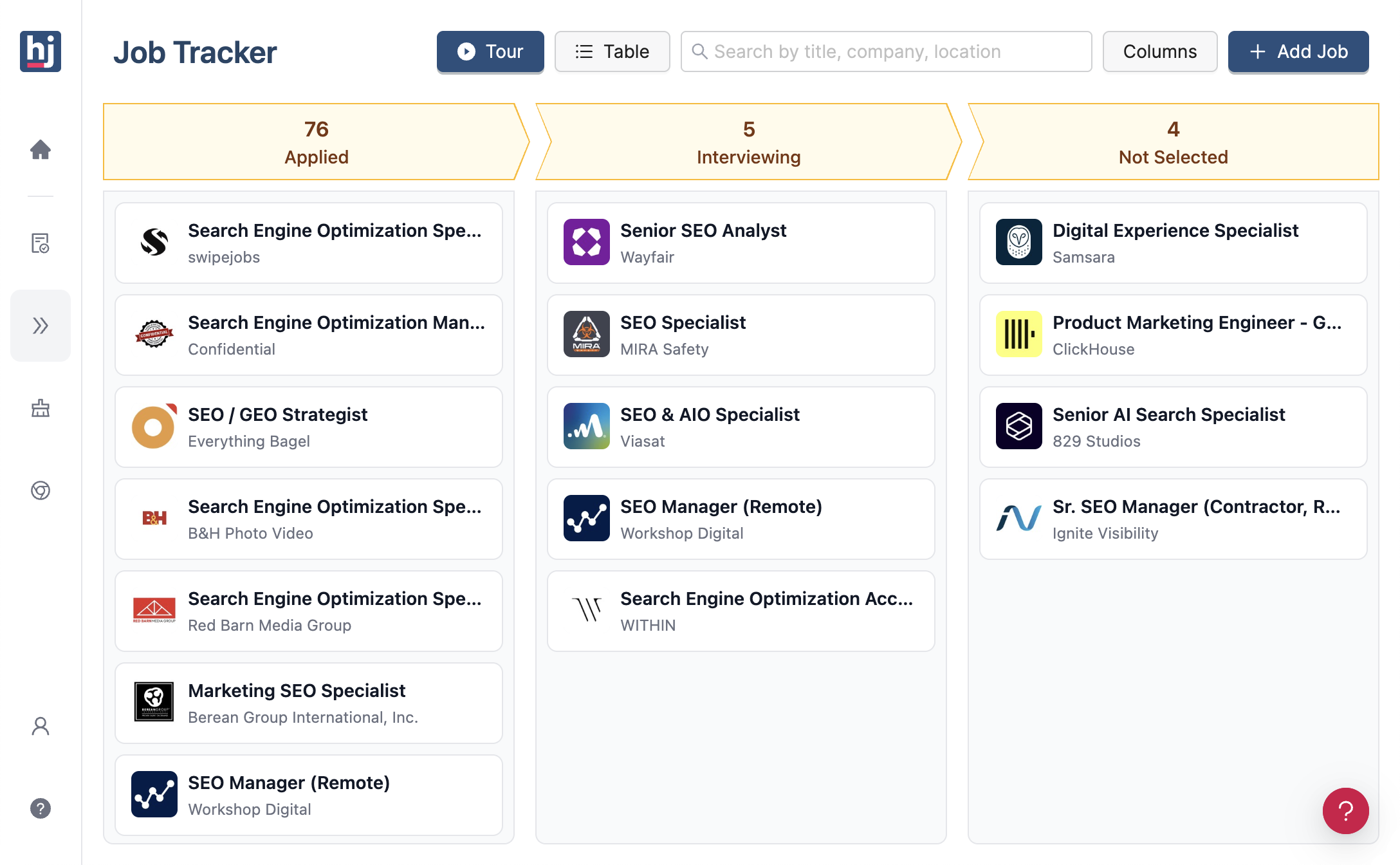
More on the tracker: setting up a job application tracker.

Anton writes about job search problems from firsthand experience. He builds tools to solve issues like repeated listings, irrelevant results, and inefficient filtering across job platforms.
Related Resources:
- How to View Applied Jobs on LinkedIn (and Find Missing Ones) - Where your LinkedIn applications are and why one can be missing
- How to Set Up LinkedIn Job Alerts (and Stop Getting Useless Ones) - Save a search and get new matching jobs by email or notification
- Job Application Tracker: What to Track and How to Set It Up - What to record for each application and how to keep it in one list