Quick Answer
To hide promoted jobs on LinkedIn: Install HideJobs, open the filters panel while on LinkedIn, and toggle on the Promoted Jobs filter. Promoted listings disappear immediately, with no manual work required.
Note: LinkedIn has no native filter to hide promoted jobs. Desktop browser extensions are the only reliable solution. The LinkedIn mobile app is not supported.
Open LinkedIn Jobs and run any search. Chances are the first three to five job cards carry a small "Promoted" label. Scroll down, and more appear. These aren't the best matches for your query — they're the listings employers paid the most to put in front of you.
LinkedIn had approximately $16.2 billion in revenue in fiscal 2024, with Talent Solutions (the division that includes job advertising) contributing roughly $7 billion of that total (Microsoft Investor Relations, Jul 2024). Promoted job listings are central to that revenue stream, which is why they appear everywhere and why LinkedIn has never built a way to hide them.
This guide explains what promoted job listings actually are, why they attract so much more competition, and how to remove them from your search results using HideJobs or alternative methods — so you can spend your time on listings where you're not competing with thousands of other applicants. You can also hide applied jobs at the same time to keep your results as clean as possible.
What Are Promoted Job Listings on LinkedIn?
Promoted job listings are paid placements that employers buy through LinkedIn's job advertising system to appear at the top of candidate search results. According to LinkedIn's official help documentation, promoted jobs reach on average 3x more qualified applicants than free job posts — which is precisely why employers pay for them.
Every promoted listing has a "Promoted" label on the card. That's the only signal distinguishing a paid placement from an organic one. Employers pay on a cost-per-click or daily budget model — the average cost in the US is $2.83 per candidate (Lobstr.io, Feb 2024).
How promoted jobs differ from free listings:
- Duration: Promoted jobs run for up to 6 months. Free listings pause automatically after roughly 14 days or 50 applicants.
- Applicant cap: Promoted jobs accept unlimited applicants. Free posts have built-in limits.
- Placement: Promoted jobs appear at the top of search results regardless of recency or match quality.
- Mobile notifications: Promoted jobs trigger instant push notifications to matched candidates on mobile.
Free job posts behave very differently. They appear based on relevance and recency, they pause after hitting the applicant limit, and they don't get premium placement. When both types appear in the same search, promoted listings always float to the top.
One thing most guides don't make clear: LinkedIn has no native filter to hide promoted jobs. This isn't an oversight — it's by design. LinkedIn sells promoted placements to employers and has no incentive to let candidates opt out. A native "hide promoted jobs" toggle would directly undermine the value of the product LinkedIn sells to recruiters.
Why Do Promoted Jobs Dominate LinkedIn Search Results?
Promoted jobs dominate LinkedIn search results because LinkedIn's ranking algorithm is built to serve employer interests first. Employers pay on a cost-per-click or daily budget model, and LinkedIn's algorithm guarantees those paying customers top-of-page placement — regardless of how relevant the listing is to your search query or how recently it was posted.
The scale of the platform makes this dynamic significant for job seekers. 65 million people use LinkedIn to search for jobs every week, and 101 job applications are submitted every second (LinkedIn data via Kinsta, 2024). Employers know that visibility on a platform this large translates directly into applicant volume — so they pay for top placement.
LinkedIn's algorithm is calibrated to serve employer interests first. Employers paying for promoted placements get guaranteed top-of-page positions. Organic listings compete on relevance and recency and get pushed further down. The more employers pay, the more the feed fills with promoted content.
Why LinkedIn won't add a native filter:
LinkedIn sponsored and promoted ads average a 0.44%–0.65% click-through rate (Sprinklr, 2025). Employers pay for every click on these listings. A native opt-out filter would reduce clicks, reduce employer spend, and reduce LinkedIn's revenue. That's why the filter has never appeared — and likely never will.
When I was building HideJobs, I ran my own searches across dozens of different roles and cities to understand what job seekers were actually seeing. In competitive markets, promoted listings occupied the first five to eight results on every page before a single organic listing appeared. That's not an occasional annoyance; it's the default state of LinkedIn job search. It's what made a Promoted filter non-negotiable from day one.
This isn't a criticism of LinkedIn. Every platform optimizes for its paying customers. But the result for job seekers is a search experience built around employer budgets rather than candidate needs. Third-party tools exist precisely because the platform's incentives don't align with yours.
Should You Apply to Promoted Jobs on LinkedIn?
Promoted jobs are real positions with genuine hiring intent — they're worth applying to if you're a strong match. The strategic question is competition. A controlled test found a promoted listing attracted 1,751 applicants from 3,136 views versus only 53 applicants from 155 views for a free listing in the same 22-hour window (Lobstr.io, Feb 2024). That's approximately 33x more competition on promoted listings.
The math matters. If a recruiter can realistically review 100 applications, your odds on a promoted job with 1,700 applicants are significantly worse than on an organic job with 50 applicants. Applying to the promoted version isn't wrong, but it shouldn't be your only move. Our guide on jobs with 100+ applicants covers this tradeoff in more detail.
A practical approach:
- Apply to promoted jobs when you're a very strong match and the role is exactly what you're targeting. Competition is high, but it's not zero.
- Prioritize organic listings where applicant counts are lower. These are harder to find because promoted jobs push them down — which is exactly why filtering helps.
- Filter promoted jobs to surface the organic listings that are buried below them. Many job seekers never reach these because promoted jobs fill the visible portion of every page.
One caveat worth noting: in some heavily competitive searches (large cities, popular roles), filtering promoted jobs might leave noticeably fewer results on your page. This isn't a bug — it reflects how much of the feed is paid content. Widening your search or using time-range filters alongside promoted job filtering can help offset this.
How to Hide Promoted Jobs on LinkedIn
There are two practical methods for removing promoted jobs from LinkedIn search results on desktop. Both work by detecting LinkedIn's "Promoted" label and hiding those job cards. Neither requires a LinkedIn account change or any interaction with LinkedIn settings.
Method 1: HideJobs Extension (Recommended)
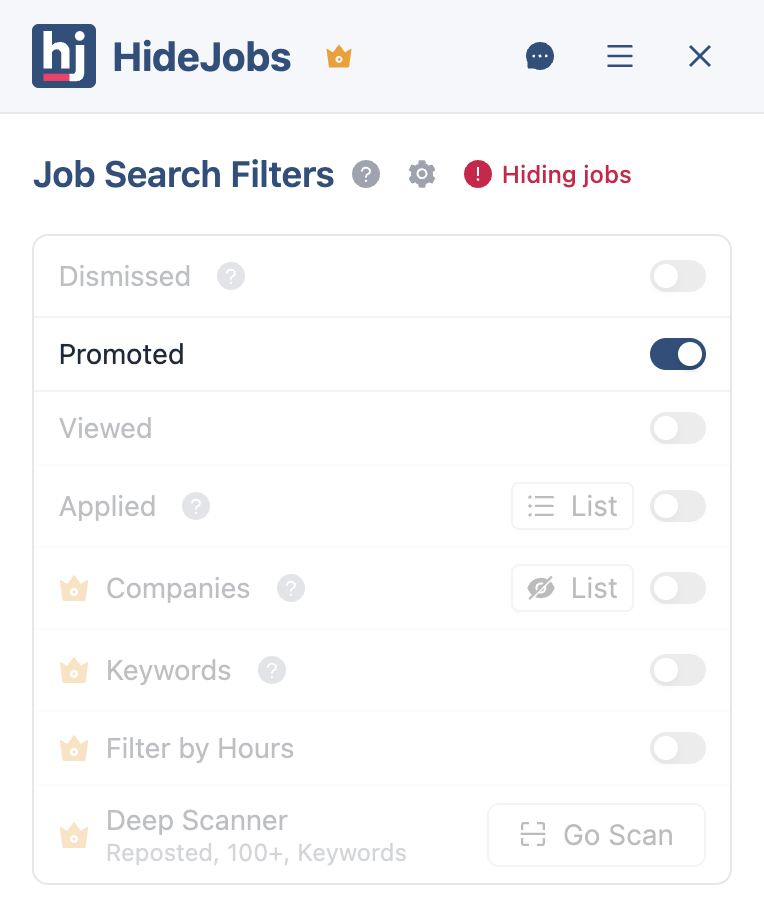
HideJobs has a built-in Promoted Jobs toggle in its filter panel. It's available on the free plan — no subscription required. It's also the simplest option because it works automatically the moment you enable it: no custom rules to write, no separate tools to manage. In building HideJobs, the Promoted filter was one of the most-requested features from users who found promoted listings drowning out organic results.
The extension works on desktop browsers. Once installed, open LinkedIn Jobs, click the HideJobs panel icon, and toggle Promoted Jobs on. Promoted listings disappear immediately and the filter stays active across searches and page loads.


What if the page looks empty after filtering?
While testing, I saw this repeatedly: some searches return a first page where every single listing is promoted. Enable the filter and the page goes blank. That's not a bug — it's an accurate picture of what LinkedIn was showing you. Try scrolling to the next page or broadening your search terms. The organic listings are there, just buried further down.
The Promoted Jobs filter works alongside all other HideJobs filters. You can hide applied jobs, filter reposted jobs, and exclude companies from your job search all at the same time.
Method 2: uBlock Origin Custom Filter (Technical)
If you already use uBlock Origin, you can add a single custom filter rule to hide promoted LinkedIn job cards. No extra tools needed beyond what you already have — though it works only as long as LinkedIn's HTML structure doesn't change.
www.linkedin.com##li:has-text(Promoted)
- Open uBlock Origin settings (click the extension icon, then the gear icon).
- Go to the My filters tab.
- Paste the rule: www.linkedin.com##li:has-text(Promoted)
- Click Apply changes.
- Reload LinkedIn. Promoted job cards should no longer appear.
Keep in mind that LinkedIn interface updates can break the selector, requiring you to update the rule manually. It's best suited to users comfortable with browser tools and occasional maintenance.
Can You Hide Promoted Jobs on the LinkedIn Mobile App?
No — and it's worth being direct about this. Browser extensions do not work inside native apps on iOS or Android. LinkedIn's mobile app runs as a standalone application, not through a browser, so there's no way to inject an extension's logic into it. Both methods described above — HideJobs and uBlock Origin — require a desktop browser.
If you primarily search for jobs on your phone, there's currently no workaround for hiding promoted listings. You'll see them in your feed the same way everyone else does.
Practical workaround for mobile searchers:
Use LinkedIn's mobile app for quick browsing and alerts, but do your actual filtering and evaluation on desktop with HideJobs enabled. This is the most efficient split: mobile for discovery, desktop for focused evaluation with promoted and clutter filtered out.
This isn't unique to promoted jobs. The same limitation applies to hiding applied jobs, dismissed jobs, and any other filtering you'd want to do. Desktop-first job searching — at least for the serious evaluation phase — gives you meaningfully better control over what you see.
What Changes When You Filter Promoted Job Listings?
Filtering promoted jobs changes the composition of your search results in a way that's hard to fully appreciate until you try it. In searches for competitive roles in major markets, promoted jobs can account for more than half of the visible listings on the first page. Hiding them shifts the page from employer-paid content to organic results ranked by relevance and recency.
Here's what improves in practice:
- Lower-competition listings become visible. Organic jobs that were buried below promoted placements now appear at the top of your results. These are often the listings with fewer applicants rather than the ones with 100+.
- Faster scanning. Every listing on screen is one you haven't already mentally dismissed as "just an ad." You can evaluate each result without filtering by eye.
- Better signal-to-noise ratio. Organic listings rank based on match quality and recency. Without promoted jobs pushing them down, the top results are closer to what the algorithm actually thinks is relevant for your search.
- Combined filtering power. Hiding promoted jobs stacks with other filters. Remove applied jobs, reposted listings, and dismissed jobs at the same time for results that are fresh, organic, and genuinely unreviewed.
- Less frustration. Repeatedly scrolling past the same promoted listings from the same large companies is demoralizing. A clean organic feed keeps your search feeling productive.
The goal isn't fewer jobs to look at — it's jobs worth looking at. Organic listings with lower applicant counts represent better odds, and they're the ones that promoted jobs consistently push off your screen.

Anton writes about job search problems from firsthand experience. He builds tools to solve issues like repeated listings, irrelevant results, and inefficient filtering across job platforms.
Related Resources:
- How to Hide Applied Jobs on LinkedIn - Keep your search results focused on fresh opportunities you haven't applied to yet
- How to Filter Out Reposted Jobs on LinkedIn - Remove duplicate and recycled listings from your search results
- Should You Apply to Jobs with 100+ Applicants? - Understand competition thresholds and where your time is best spent