Quick Answer
No major job board lets you build a persistent keyword blocklist. LinkedIn's Boolean NOT can't be saved as a filter and resets every session. Indeed, Glassdoor, and the rest have no exclusion feature at all.
The two approaches to filter jobs by keywords:
- Native search operators (LinkedIn only): type
software engineer NOT senior NOT contractinto the search bar. Resets every session, search bar only, LinkedIn only. - HideJobs: add keywords once and they're hidden automatically across LinkedIn, Indeed, Glassdoor, Monster, ZipRecruiter, and Seek. Matches against job card fields. Persists across all sessions.
Most effective keywords to block: seniority mismatches (senior, director, intern), employment type (contract, temporary, part-time), work format (hybrid, on-site). Avoid short abbreviations like sr or vp — they can match unintended listings.
Every job board lets you search by keyword. None of them let you reliably exclude by keyword. A search for "product manager" returns Senior Product Managers, Directors of Product, agency contract listings, and part-time roles, all in the same results. You scroll past the same mismatches every session because there's no way to build a blocklist that actually sticks.
When I built HideJobs, filtering the same noise manually across multiple platforms every day was the exact frustration that drove it. LinkedIn's Boolean NOT resets every session and can't be saved as a filter. Indeed has no exclusion feature at all. Glassdoor, Monster, ZipRecruiter, Seek — same story. The noise compounds when you're searching across all of them at once with no way to filter consistently.
This guide explains which keywords are worth blocking (and which short ones to avoid), why native tools don't deliver it, and how to set up filtering that works automatically across every platform. For a parallel problem, see also excluding companies from your job search.
What Do Job Seekers Actually Want to Filter Out?
The listings worth filtering share one thing: their signal is visible on the job card itself, before you even open the posting. Looking at what HideJobs users actually block, three types show up consistently across every platform.
- Seniority levels you're not targeting. A search for "software engineer" returns Senior Engineers, Directors, and Staff-level roles alongside mid-level ones. The seniority filter helps but misses plenty. Blocking the exact words from the job title is more reliable.
- Work format or employment type you're not looking for. Remote-only searches still surface on-site and hybrid listings. Full-time searches mix in contract and part-time roles. These labels appear directly on the card.
- Industries, niches, or platforms you don't want. Job titles regularly contain words that immediately rule a role out: an industry ("cannabis", "alcohol"), a platform ("TikTok"), or a niche ("B2C", "digital"). Blocking those words keeps them out without affecting anything else.
Why Don't Native Keyword Filters Work?
Both LinkedIn and Indeed offer some keyword search capability, but neither delivers what job seekers actually need: a persistent blocklist that applies to job titles. LinkedIn is where most people search first, and its keyword filter is fundamentally broken for that purpose.
LinkedIn Boolean "NOT": what it actually does
LinkedIn supports Boolean operators in the Jobs search bar. The NOT operator is meant to exclude results containing a word. Example:
software engineer NOT senior NOT contract NOT staffing
Three practical limitations (per LinkedIn's own documentation):
- It resets every session. Close your search tab or open a new one and the exclusions are gone. LinkedIn Jobs has no way to save a Boolean query across sessions.
- It only works in the search bar. There's no way to save it as a persistent filter or apply it to job alerts.
- It only works on LinkedIn. Boolean operators don't carry over to Indeed, Glassdoor, or any other platform. On those platforms, there's no equivalent native feature at all.
Indeed: no persistent keyword exclusion
Indeed does not support persistent keyword exclusion. You can use quotes for exact phrases (e.g., "product manager") to narrow results, but there's no stable way to exclude a term from your results. Indeed's support documentation focuses entirely on how to include and refine, not exclude. Even if a minus-sign syntax works in some search variations, it isn't persistent and doesn't apply to job alerts. Job seekers on Indeed have no built-in, reliable way to say "show me everything except listings with this word."
The result: job seekers who search across multiple platforms filter manually on LinkedIn (imperfectly) and not at all everywhere else. The same applies whether you're blocking seniority levels or filtering out reposted listings.
What Keywords Should You Hide Jobs By?
Each of the three categories above maps to specific words. Here's what to actually add to your blocklist for each one.
Seniority keywords (block the levels you're not targeting):
seniorsr.directorvpvice presidentprincipalstaffheadinterninternshipentry leveljuniorBlock the levels above or below where you are in your career. A senior engineer blocks intern and entry level. A recent graduate blocks director, VP, and principal. You don't need to add both sides. Add only what you'd immediately skip.
Be careful with short abbreviations:
Short terms like sr, vp, jr can accidentally match jobs that contain those letters in another context. A company called "Stripe VP Platform" would be hidden if you block vp. When in doubt, use the full word: senior instead of sr, junior instead of jr. Longer terms are more precise and less likely to produce false positives.
Work format keywords (visible on job cards):
hybridon-siteremotein-officeWork format appears directly on job cards across all platforms. If you need fully remote, block hybrid and on-site. If you prefer in-office, block remote. These are among the most reliable keywords to block because they're always card-visible.
Employment type keywords (visible on job cards):
contractpart-timetemporaryinternshipvolunteerfreelanceEmployment type is shown on job cards on LinkedIn, Indeed, ZipRecruiter, and Seek. Blocking contract removes contract and contract-to-hire listings that surface this label on the card. Use a company exclusion list to catch staffing agencies whose cards don't label the role as contract.
Industry, niche, or platform keywords (examples):
cannabisalcoholgamblingcryptoTikTokB2CdigitalstaffingThese are personal — what you block depends entirely on what you want to avoid. The examples above are common ones, but your list will look different. Any word that appears consistently in titles or company names you skip is worth adding.
Start with 5–10 keywords that match the listings you skip most often. The list builds naturally over time. You don't need to add everything at once. The goal is to stop reprocessing the same noise every session, not to build a perfect list before you begin.
How to Filter Jobs by Keywords with HideJobs
HideJobs includes a Hide Jobs by Keywords feature that applies your saved keyword list automatically across LinkedIn, Indeed, Glassdoor, Monster, ZipRecruiter, and Seek. Any job card whose title, company, location, or employment type contains a keyword from your list disappears immediately.
How to use Hide Jobs by Keywords in HideJobs:
- Install the HideJobs browser extension
- Open the extension panel and go to Hide Jobs by Keywords
- Type a keyword and press Enter to add (you can add multiple keywords to your saved list)
- All job cards containing that keyword in the title, company, location, or employment type disappear immediately
- Your keyword list is saved locally in the extension. Sign in to your HideJobs account to sync it across devices
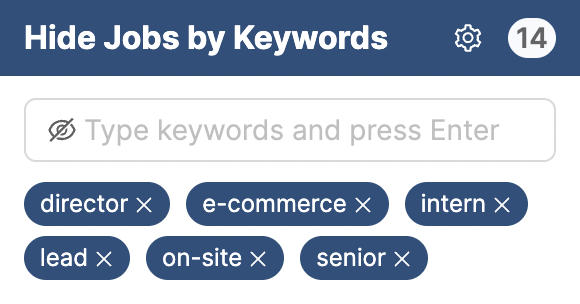
The keyword list works the same way on every platform you search. Add senior, lead, or intern once and they're blocked on LinkedIn, Indeed, and Glassdoor simultaneously. No platform-specific setup, no re-entering your list per site.
When I built this feature, I started with a list of about eight keywords. The first session after setting it up is the one that makes the value obvious, you realize how many listings you were reflexively skipping before.
This matters most for job seekers searching across multiple boards simultaneously. Whether you're filtering down to niche roles or trying to avoid jobs with 100+ applicants, seeing the same irrelevant listings on every platform compounds the time cost of every session.
Combining Keyword and Company Filters for the Cleanest Results
Keyword blocking and company exclusion solve overlapping but distinct problems. Keyword filters catch role types and contract structures regardless of who posted them. Company exclusions catch specific employers, typically agencies that don't telegraph themselves through keyword phrases. Together they cover the two main sources of search noise that native platform filters miss entirely.
How the two filters work together:
- Keyword blocking catches: seniority mismatches (
senior,director,intern), employment type (contract,temporary), work format (hybrid,on-site), and any phrase visible on job cards that appears in listings you skip. - Company exclusion catches: staffing agencies and employers you've specifically decided to stop seeing, including ones that don't use distinctive keyword phrases in their postings. See the full guide to excluding companies from your job search.
Using both filters together produces the cleanest results: you eliminate role types you'd skip regardless of employer, and you eliminate specific employers regardless of how their listings are written. The combination also reduces the risk of missing a relevant listing because a single filter was too broad.
Other filters that stack well with keyword blocking: filtering out reposted listings removes recycled placeholders and slow hires, while hiding jobs you've already applied to keeps results focused on fresh opportunities. Ghost job listings are a separate problem that keyword filters won't solve on their own.
In practice, the biggest time savings come in the first week of consistent filtering. Once your blocklist reflects your actual search patterns, the daily friction of scrolling past irrelevant listings drops sharply. The hiring timeline doesn't change, but the hours spent on dead-end listings before that first offer can.

Anton writes about job search problems from firsthand experience. He builds tools to solve issues like repeated listings, irrelevant results, and inefficient filtering across job platforms.
Related Resources:
- How to Exclude Companies from LinkedIn Job Search - Block specific employers and staffing agencies across all platforms with one exclusion list.
- How to Filter Out Reposted Jobs on LinkedIn - Remove recycled and reposted listings from your search results.
- What Is a Ghost Job? How to Spot Fake Listings - 93% of HR professionals admit to posting ghost jobs. Learn to spot them.