Quick Answer
To hide viewed jobs on LinkedIn: Install HideJobs, open the filters panel while on LinkedIn, and toggle on the Viewed Jobs filter. Viewed listings disappear immediately, with no manual work required.
Note: LinkedIn has no native filter to hide viewed jobs. Desktop browser extensions are the only reliable solution. The LinkedIn mobile app is not supported.
Every job listing you open on LinkedIn gets a "Viewed" label, and it stays there permanently. LinkedIn offers no way to clear that history or filter those listings out of your search results. After a few weeks of active job hunting, a growing share of every page is jobs you've already read and moved on from.
This guide covers what the "Viewed" label actually means, why LinkedIn keeps those listings visible, and how to filter them out automatically so every result on screen is genuinely new.
Why Viewed Jobs Keep Appearing in Your Results
LinkedIn displays 25 job listings per search results page. Every listing you click receives a "Viewed" label, and that label is permanent. There is no expiry, no automatic removal, no way to mark a listing as dismissed without a third-party tool. Viewed jobs stay exactly where they are, occupying numbered slots in your results indefinitely.
If you search actively, this compounds fast. Click through ten listings a day and by the end of the first week you've got dozens of "Viewed" labels scattered across your results. After weeks of active searching, your results fill up with jobs you already evaluated, clicked through, and consciously moved past. The page looks full, but half the real estate is occupied by decisions you already made.
The mental overhead adds up with every session. Each "Viewed" listing makes your brain briefly re-process the title, company, and role before the label registers and you skip it. That micro-cost is small per listing, but it accumulates across a job search that runs weeks or months. It makes the whole process feel slower and more exhausting than it needs to be. Building HideJobs, this was one of the things I kept running into myself: the same listings showing up, the same mental pause before skipping them.
Why Doesn't LinkedIn Hide Viewed Jobs Automatically?
LinkedIn's native job search filters include Date Posted, Experience Level, Company, Job Type, Remote/Onsite/Hybrid, Salary Range, and Easy Apply. There is no "Hide Viewed" option. This isn't an oversight. It reflects a consistent pattern in how LinkedIn prioritizes feature development.
LinkedIn's primary revenue comes from employers and recruiters, not from job seekers. Talent Solutions (job postings, LinkedIn Recruiter, and hiring tools) surpassed $7 billion in annual revenue for the first time in FY2023, making it the single largest segment of LinkedIn's business. The platform's incentives align with maximizing engagement metrics for the customers paying for those posting slots.
Why LinkedIn Won't Add a Native Viewed-Jobs Filter
- Employer metric inflation. View counts on job postings are a key signal for employers paying for listings. Keeping viewed jobs visible inflates those numbers with repeat visits from the same job seekers, without any additional reach from new candidates.
- Promoted listing revenue. Employers pay for promoted job slots that appear at the top of search results. If viewed jobs disappeared automatically, active job seekers would burn through promoted inventory faster and the remaining audience per promoted slot would shrink.
- Time-on-platform. Cluttered results mean users spend longer scrolling to find fresh listings. More time on the platform means more exposure to LinkedIn's advertising products and sponsored content, a separate revenue stream that benefits from extended session length.
None of this means LinkedIn is operating in bad faith. It's optimizing for its paying customers, which is rational business behavior. But the effect on job seekers is that a feature with an obvious user benefit (filtering out listings you've already evaluated) doesn't get built because it doesn't serve the platform's revenue interests. That gap is exactly what third-party tools exist to fill.
How to Hide Viewed Jobs on LinkedIn
HideJobs includes a built-in Viewed Jobs toggle in its filters panel. It's available on the free plan, with no subscription required. The extension works on desktop browsers.
Install the HideJobs browser extension and open LinkedIn. Navigate to any job search results page. Click the HideJobs panel icon to open the filters. Toggle the Viewed Jobs filter on. Every listing carrying LinkedIn's "Viewed" label disappears from the page immediately, with no page reload or manual intervention needed.
The filter stays active automatically. As you navigate between search queries, scroll through new pages, and return to LinkedIn in future sessions, HideJobs continues checking each listing for the "Viewed" marker and hides matching results. You configure it once; it runs in the background from that point on.
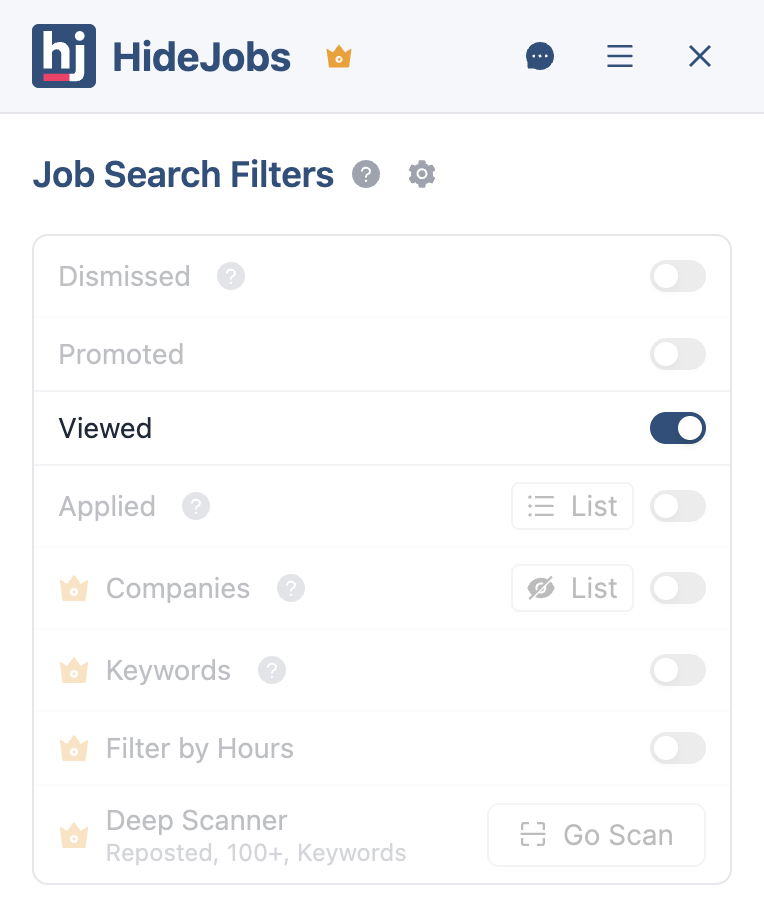


The Viewed Jobs filter also stacks with every other HideJobs filter. You can run Viewed alongside the Applied filter (for jobs you've submitted to), the Promoted filter (for paid listings), the Dismissed filter, and company-level exclusion lists, all at the same time. The result is a feed showing only listings that are new, organic, and from employers you haven't blocked. For a deeper look at applied job filtering, see the guide on how to hide applied jobs on LinkedIn. For promoted listing filtering, see how to hide promoted jobs on LinkedIn.
What Changes When You Filter Viewed Jobs
Removing viewed listings from your results changes the character of every search session. When every card on the page is a listing you've never opened, the mental load of scanning drops significantly. There's no label-checking, no re-evaluating already-dismissed roles, no friction between scrolling and deciding.
Here's what concretely improves once viewed jobs stay hidden:
- Every listing is genuinely new. You're not re-reading job titles and company names you processed last week. Everything on screen still needs your attention.
- Faster scanning. Without viewed labels breaking up the feed, your eye moves cleanly from card to card. There's no micro-pause to register the label and skip past it. The cognitive path from "see listing" to "evaluate listing" shortens noticeably.
- Better focus. When you know everything on screen is unreviewed, you can give each listing full consideration rather than splitting attention between evaluating the role and tracking what you've already seen.
- Less frustration. Repeating the same scroll through the same viewed listings day after day is quietly demoralizing. Active searches stay productive when results refresh meaningfully rather than cycling through familiar territory.
- Combined filtering. Stack Viewed with Applied, Promoted, Dismissed, and company exclusions simultaneously. The result is a feed that's new, organic, and relevant, not just cleared of one clutter type while other noise remains.
Job searches run for weeks, sometimes months. The overhead of re-processing viewed listings accumulates into real wasted time over that stretch. Filtering cuts it from day one and keeps your results clean throughout the entire search, not just at the start.

Anton writes about job search problems from firsthand experience. He builds tools to solve issues like repeated listings, irrelevant results, and inefficient filtering across job platforms.
Related Resources:
- How to Hide Applied Jobs on LinkedIn - Remove jobs you've already applied to from your search results
- How to Hide Promoted Jobs on LinkedIn - Filter out paid promoted listings and surface organic job results
- How to Filter Out Reposted Jobs on LinkedIn - Remove duplicate and recycled listings from your search results