Quick Answer
To create a LinkedIn job alert, search for a job and switch the job alert toggle on the results page to On.
- In the app, alerts start as daily, by email and LinkedIn notification. On desktop, choose frequency and delivery under Manage alerts.
- Edit or delete alerts at Jobs > Preferences > Job alerts.
- You can have up to 20 alerts at once.
- To hide jobs you already applied to, viewed, or dismissed, open the alert's search on LinkedIn with the HideJobs browser extension and turn on its free Applied, Viewed, and Dismissed filters. No LinkedIn filter does this, and it does not change the alert emails.
How to create a LinkedIn job alert
A LinkedIn job alert is built from your current search criteria, so the keywords, location, and filters you set decide which new postings it sends you.
On desktop, according to LinkedIn's help page on job alerts:
- Search for a job and apply any filters you want.
- Switch the job alert toggle on the results page to On. LinkedIn shows "Your job alert was created."
- Click Manage alerts to choose daily or weekly delivery and whether you get them by email or notification.
- Click Done.
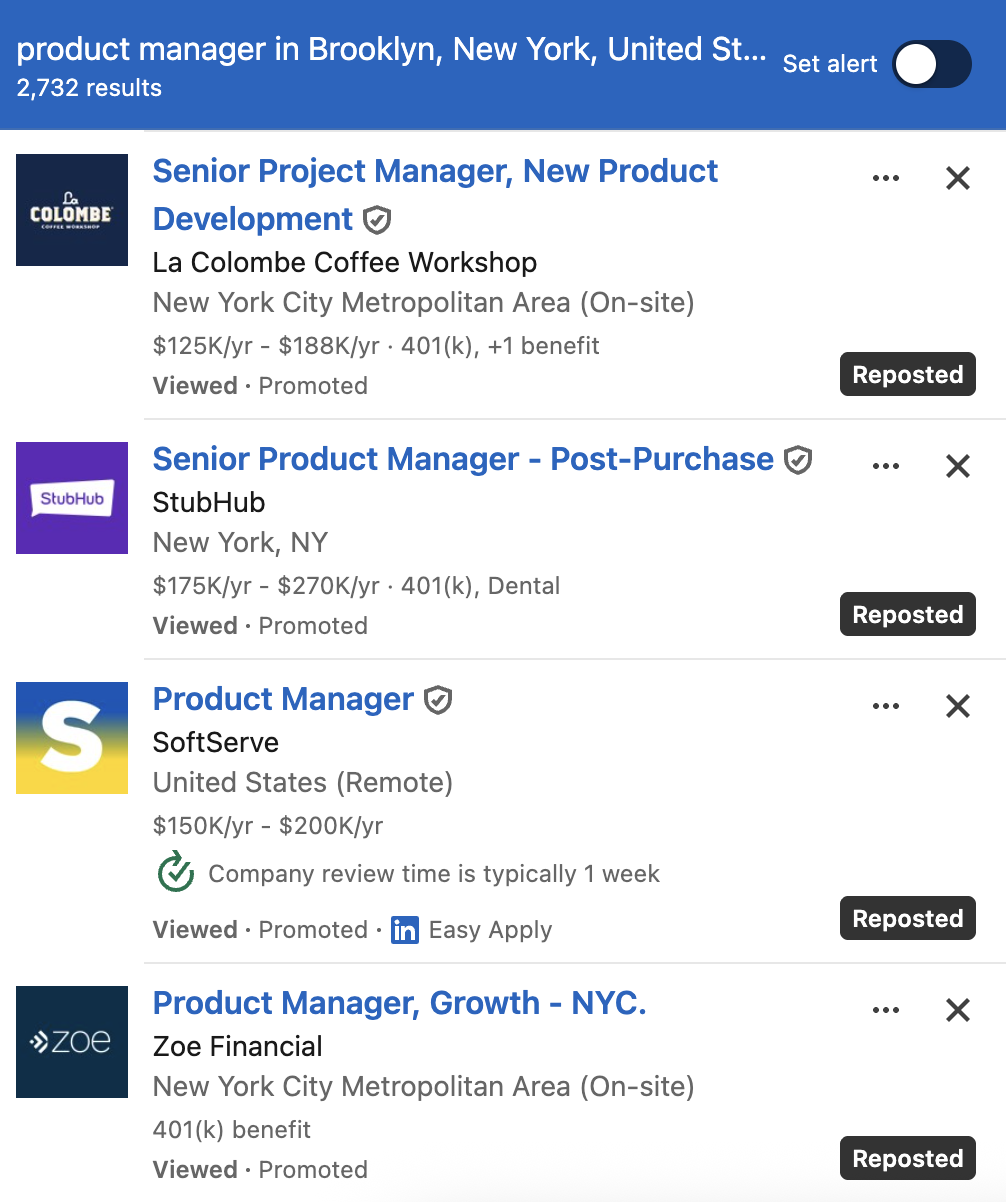
LinkedIn's help page places the toggle at the bottom of the results. In some layouts it sits at the top of the results list, labeled Set alert, as in the screenshot below.
In the LinkedIn app, search for a job and switch the job alerts toggle to On. The alert defaults to daily, with both email and LinkedIn notifications, so change it later if that is too much.
How to edit, delete, or stop job alert emails
LinkedIn keeps all your alerts in one place. On desktop, per its guide to managing job alerts, click Jobs at the top of the page and follow Preferences > Job alerts. You can edit or delete each alert from the pop-up that opens. In the app, tap Jobs, then the More icon, then Job alerts, and tap the edit icon next to the alert you want to change.
To turn an alert off, LinkedIn says to switch the same job alert toggle to Off.
To stop the emails but keep an alert, choose notifications instead of email under Manage alerts. Deleting the alert stops it completely. For LinkedIn email in general, its email settings guide points to Me > Settings & Privacy > Notifications, where you pick a category and switch off the emails you do not want. You can also use the Unsubscribe link in the footer of an email where LinkedIn offers one.
If LinkedIn refuses to create an alert, its troubleshooting page names three causes: your email settings block LinkedIn emails to your address, your search uses words it treats as offensive, or you have reached the limit of 20 active alerts.
How to get alerts for one company
If you are waiting on one employer, a company alert is more useful than a keyword search. Open the company's LinkedIn Page, click the Jobs tab, and click Create job alert. In the app, tap the Jobs tab on the Page and then the Add icon next to "Create a job alert for." LinkedIn's company alerts help page says you will be notified of new jobs that match your skills through your Notifications tab.
Why LinkedIn job alerts fill up with jobs you do not want
The search behind an alert matches more than exact titles. LinkedIn says it orders results using your search activity and other members who made similar searches. In the search shown above, "product manager" also returned a Senior Project Manager role, and all four jobs already carry LinkedIn's Viewed label.
Alerts also have no way to leave out jobs you have already dealt with. LinkedIn's job search filters include location, date posted, company, experience level, employment type, Easy Apply, under 10 applicants, and In your network. None of them removes jobs you have already applied to, viewed, or dismissed, and none removes promoted or reposted listings. So when you open the search behind an alert, jobs you have already handled are still there, and you have to recognize each one again.
To hide them, open the alert's search on LinkedIn with HideJobs, the browser extension I build, and turn on its free Applied, Viewed, and Dismissed filters. The full setup is below.
How to make your alerts more precise
Because an alert copies its search, a tighter search means a better alert. Before you switch the toggle on:
- Set experience level and employment type. They are the quickest way to drop roles that are too senior or the wrong kind of contract.
- Use the Company filter if you only want certain employers.
- Use one alert per role. Two focused alerts are easier to scan than one broad alert stretched across several titles.
- If a daily alert is mostly jobs you have seen, narrow the search before switching to weekly. Weekly only delivers the same noise less often.
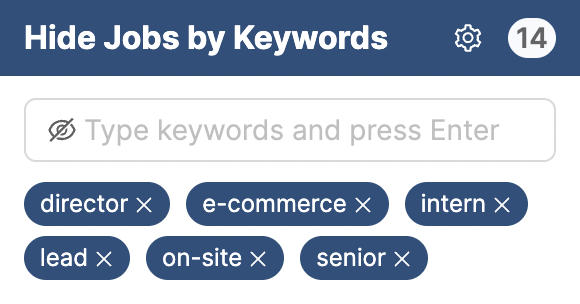
LinkedIn documents filters for job search, and it documents Boolean operators such as OR and NOT for its Recruiter product, but it does not document them for regular job search. So there is no documented way to exclude a word, such as "senior," from a LinkedIn job search or alert. HideJobs' Keywords filter (Premium) does that on the results page by hiding cards whose visible text contains the word. LinkedIn's Company filter also only narrows results to employers you pick. To drop one company you never want to see, click Hide Company on its card in HideJobs (Premium).
How to hide repeats when you open your alert results
Run your alert's search on LinkedIn's Jobs page with HideJobs installed, then turn on the filters you need:
- Applied, Viewed, and Promoted (free). HideJobs reads LinkedIn's own Applied, Viewed, and Promoted labels on each job card and hides those jobs. No account needed.
- Dismissed (free). Jobs you dismissed with the X on LinkedIn can still show up in your results. This filter hides them.
- Companies (Premium). Companies you hid with Hide Company stay out of your results while this filter is on.
- Keywords (Premium). Hide cards whose visible text, such as the title, company, or location, contains words like "senior" or "contract." It checks the card, not the full description.
- Filter by Hours (Premium). Narrow results to jobs posted in the last few hours, finer than LinkedIn's shortest documented Date posted option (past 24 hours). It works on LinkedIn's classic job search.
- Deep Scanner (Premium). Click Go Scan and HideJobs opens each job on the page to find reposted listings, jobs with over 100 applicants, and keywords in the full description, then lets you hide them.
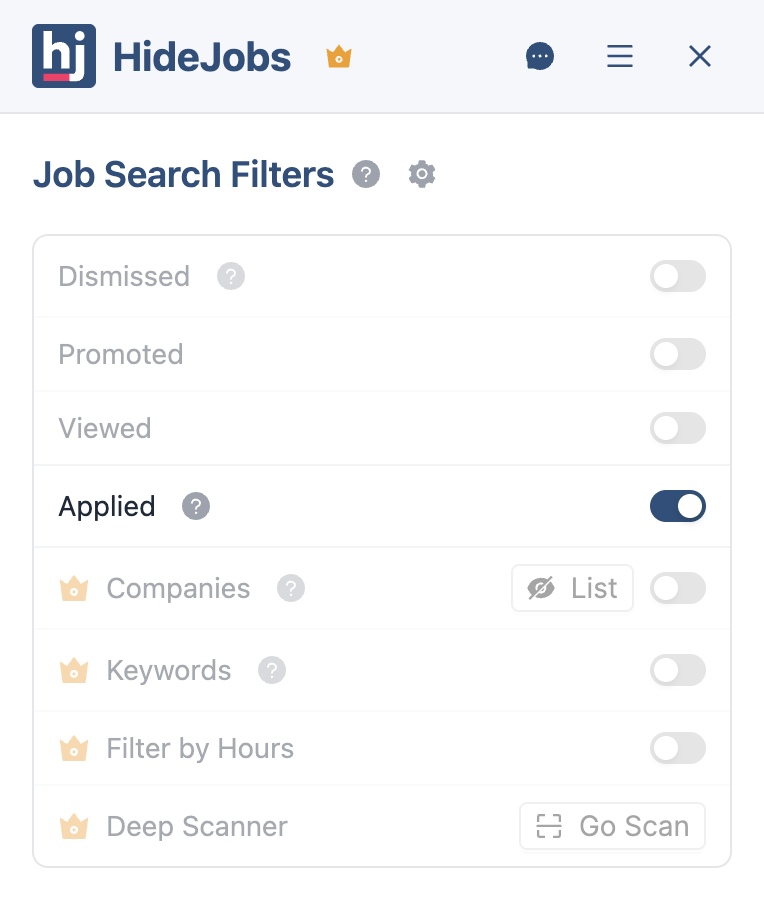
The filters work on LinkedIn's job search and job collection pages, not on a single job page. The filters do not change the alert emails themselves, so run the alert's search on LinkedIn's Jobs page to see the filtered list.
Each filter has its own guide: hiding applied jobs, reposted jobs, and promoted listings.

Anton writes about job search problems from firsthand experience. He builds tools to solve issues like repeated listings, irrelevant results, and inefficient filtering across job platforms.
Related Resources:
- How to Hide Applied Jobs on LinkedIn - Stop seeing jobs you have already applied to in LinkedIn search results
- How to Filter Out Reposted Jobs on LinkedIn - Why the same jobs keep coming back and how to filter them out
- How to Hide Promoted Jobs on LinkedIn - What promoted jobs are and how to remove them from your results