Quick Answer
To view applied jobs on LinkedIn on desktop, click the Jobs icon at the top of your homepage, click Job tracker in the left-hand rail, and click the Applied tab.
- In the app: tap Jobs, tap Job tracker under the search bar, pick Applied in the dropdown, and tap Update.
- Older guides call this page My jobs. LinkedIn's help pages now call it Job tracker.
- Jobs you applied to on a company website only show up if you saved the job first and moved it to Applied.
- LinkedIn's Job tracker guide says jobs are removed after 1 year. The Job Applications file in LinkedIn's data download lists your applications with dates.
- To keep applied jobs out of your LinkedIn search results, turn on the free Applied filter in HideJobs, the browser extension I build.
How to view applied jobs on LinkedIn on desktop
To view applied jobs on LinkedIn, open the Job tracker. Older guides call this page "My jobs," but LinkedIn's help page on applied jobs now names it Job tracker. On the LinkedIn website on desktop:
- Click the Jobs icon at the top of your homepage.
- Click Job tracker in the left-hand rail.
- Click the Applied tab.
- Click a job to open its job details page.
The same Job tracker holds your saved jobs. LinkedIn's Job tracker guide describes five stages: saved, in progress, apply, interview, and archive.
How to see applied jobs in the LinkedIn app
In the LinkedIn mobile app, you pick Applied from a dropdown:
- Tap the Jobs icon.
- Tap Job tracker under the search bar.
- Tap the dropdown and select Applied.
- Tap Update.
- Tap a job to open its job details page.
What LinkedIn shows about each application
Opening a job from the Applied tab takes you to its job details page. For jobs you applied to with Easy Apply, you can also check which resume you sent, according to LinkedIn's submitted resume help page:
- Open the Applied tab in Job tracker as above.
- Click the job application you want to check.
- On the job details page, click Submitted resume.
LinkedIn's page on what to expect after you apply says that for Easy Apply jobs hosted on LinkedIn, you get an update when the job poster views your application (a view can include your screening question answers) or downloads your resume. Neither one guarantees a message, interview, or offer. The page says nothing about updates for jobs you applied to on a company website.
Why a job you applied to is missing from the list
If a job you know you applied to is not under Applied, check these:
- You applied on the company's website. When a job shows an Apply button instead of Easy Apply, LinkedIn sends you to the company's website or job board to finish. Those jobs only reach Applied if you saved the job and moved it there. The steps are in the next section.
- You started an Easy Apply but did not submit it. LinkedIn's Job tracker guide says saved Easy Apply jobs move from Saved to In Progress when you start the application and to Applied when you submit it. If a saved Easy Apply job is still under In Progress, LinkedIn has no record that you submitted it.
- You moved it to Interview. You can move an Easy Apply job from Applied to Interview with Change stage. If you did, look under Interview. To put it back, use Change stage again: LinkedIn says "Jobs in the Interview stage can be moved to Applied."
- It is more than a year old. The Job tracker guide says "Jobs are automatically removed from the Job tracker after 1 year," while the applied jobs page contradicts it, saying that after you apply, "you can view it again at any time." If an application from more than a year ago is gone, check the Job Applications file in the data download (LinkedIn does not say how far back it goes). For applications from now on, the HideJobs job tracker has no one-year cutoff (it does not import older ones; see below).
How to mark a job as applied on LinkedIn
LinkedIn's help pages contradict each other on jobs you apply to off LinkedIn. Its job search best practices page says "Jobs that require application completion on their company website won't be available on this list." The Job tracker guide says "To track jobs where you apply off LinkedIn, you will first need to Save that job," and then you can move it between In Progress, Applied, and Interview yourself.
So save the job before you leave LinkedIn. On desktop, following LinkedIn's saved jobs help page:
- Open the job on LinkedIn.
- Click Save on the job details page.
- Click Apply and finish the application on the company's website.
- Back on LinkedIn, click the Jobs icon at the top of your homepage.
- Click Job tracker in the left-hand rail.
- Under the Saved tab, click the More icon next to the job.
- Click Change stage.
- Move the job to Applied.
LinkedIn says the Job tracker will prompt you, but you can change the stage yourself at any time with Change stage. You may also see a LinkedIn banner like this one:

In the LinkedIn mobile app:
- Open the job.
- Tap Save on the job details page.
- Tap Apply and finish the application on the company's website.
- Back in the app, tap the Jobs icon.
- Tap Job tracker.
- Under the Saved tab, tap the More icon next to the job.
- Tap Change stage.
- Move the job to Applied.
If you found the job on another job board and it is not posted on LinkedIn, LinkedIn's Job tracker guide gives no way to add it. Add it to the HideJobs job tracker with Add Job instead (free, needs a login, steps below).
How to download a list of your LinkedIn applications
LinkedIn's Download your data page lists a Job Applications file that "contains jobs the member has applied for, application date, company name, job title, and LinkedIn's job posting URL." The page does not say how far back the file goes, and it does not list the job description among the file's contents. The same download has a Saved Jobs file with "the date saved, job title, company name, and the LinkedIn job posting URL," which should include company-site jobs you saved but never moved to Applied. To request them on desktop (it is not available on mobile):
- Click the Me icon at the top of your LinkedIn homepage.
- Select Settings & Privacy from the dropdown.
- Click Data Privacy on the left rail.
- Under How LinkedIn uses your data, click Download your data.
- Select the data you want.
- Click Request archive.
- Use the link in LinkedIn's email to download the file.
LinkedIn says that if you pick specific types of data, it emails you within minutes, and the larger download takes up to 24 hours. The file stays available for 72 hours, so download it as soon as the email arrives. If you plan to close your LinkedIn account, download it first: LinkedIn says "If you close your account, you'll no longer have access to your LinkedIn account data."
How to keep applied jobs out of search and in one list
In LinkedIn search results, jobs you applied to stay in the list with an Applied label, and your list of applications sits on a separate page. In a desktop browser, HideJobs hides those jobs from search and logs new LinkedIn applications in one list.
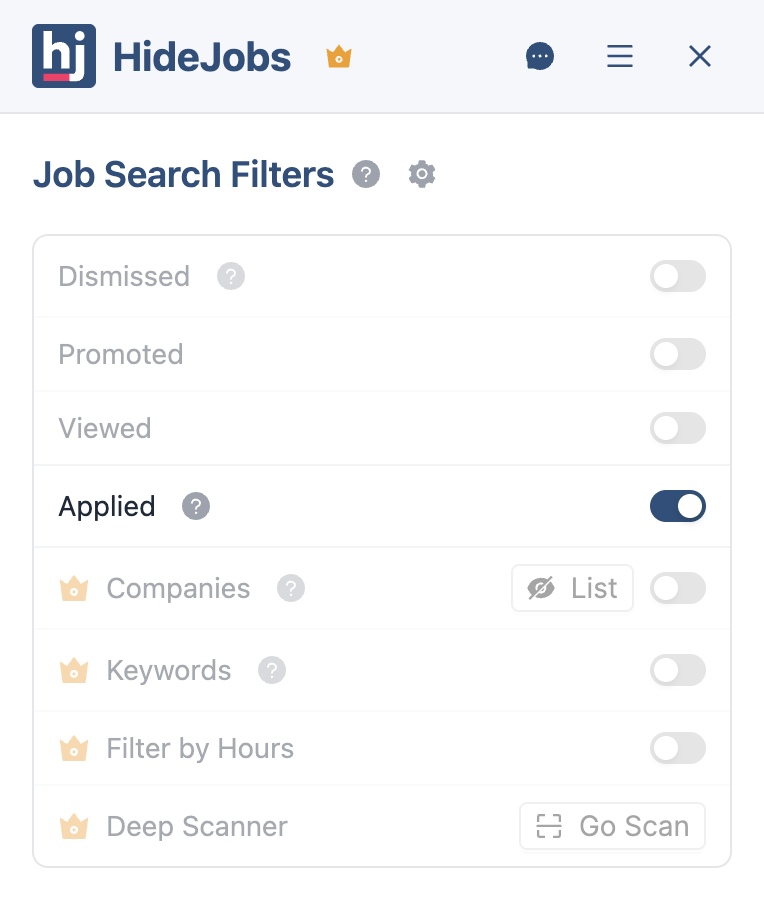
- Applied filter (free, no account). Jobs showing LinkedIn's Applied label disappear from your results. It works on LinkedIn's job search pages, including AI search, and on job collections, with a counter badge showing how many it hid. It relies on LinkedIn's own label, so any job whose card does not show that label stays visible. It does not change the Job tracker page or the mobile app.
- Job tracker (free, needs a login). With the extension installed and logged in, jobs you apply to through LinkedIn's own apply flow are added to the HideJobs job tracker as Applied, with the date and the job link, and a small "Applied job saved" message with a See My Applied Jobs button confirms it. It also keeps the job description, and the salary when the posting shows one. It does not import applications you sent before installing it. For a job you applied to on a company website or another board, add it by hand (steps below).
To turn on the Applied filter:
- Open a LinkedIn job search page in your desktop browser.
- Click the HideJobs floating button to open the side panel.
- Under Job Search Filters, turn on Applied.
HideJobs has a separate Applied switch for LinkedIn's AI search and classic search pages, so turn it on for both if you use both.
In the HideJobs tracker, the Table view has an Applied column with the date of each application (filled in automatically for jobs added from LinkedIn, set by you for jobs you add by hand), and you can click the column header to sort by it. Unlike LinkedIn's Job tracker, it has no one-year cutoff.
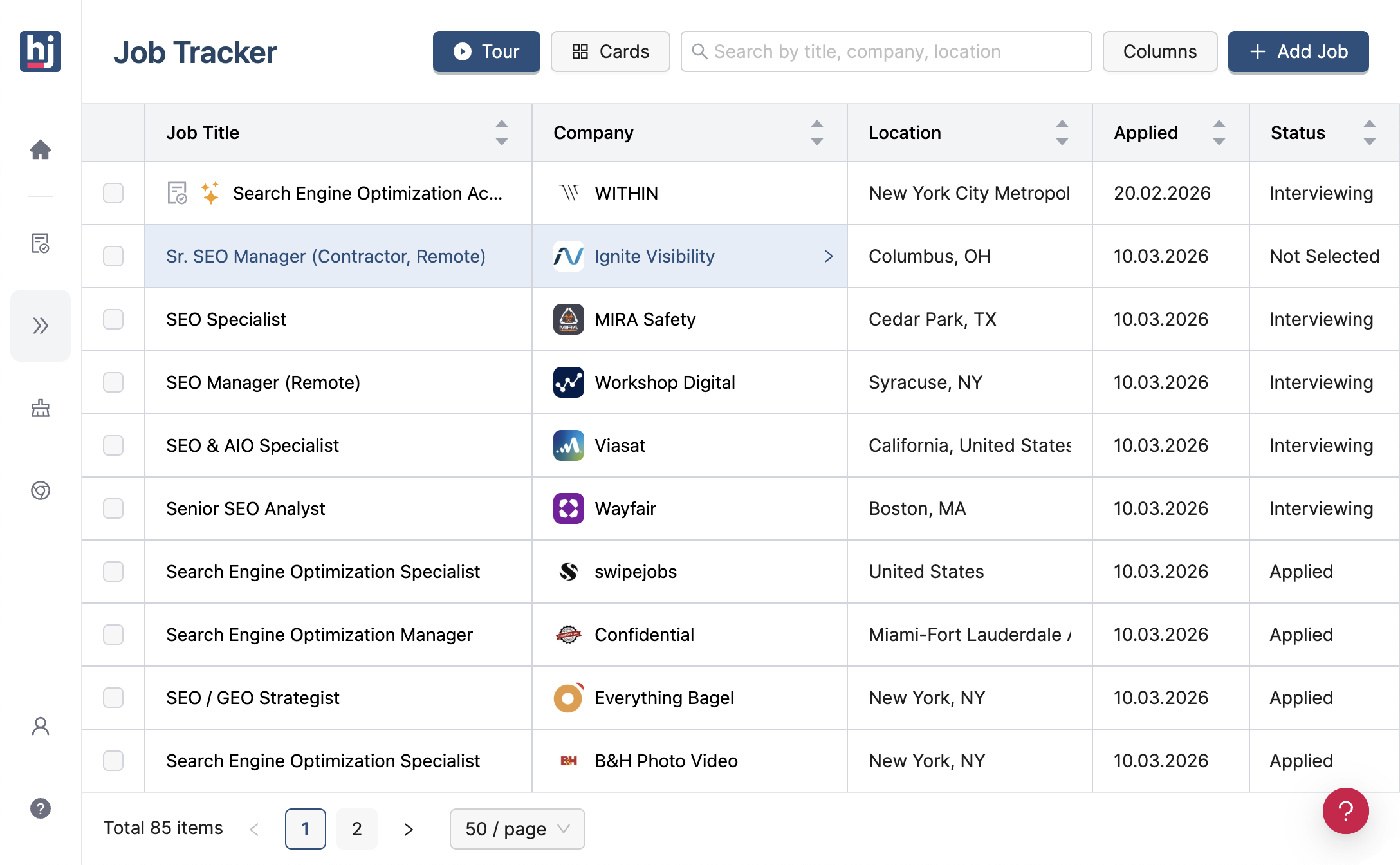
To add a job by hand:
- Open the HideJobs Job Tracker and log in.
- Click Add Job at the top right of the page.
- Fill in Job Title, Company, Job URL, Location, and Job Description.
- Click Save.
- In Table view, click the job's Applied cell and pick the date you applied.
More on each part: hiding applied jobs on LinkedIn and setting up a job application tracker.

Anton writes about job search problems from firsthand experience. He builds tools to solve issues like repeated listings, irrelevant results, and inefficient filtering across job platforms.
Related Resources:
- How to Hide Applied Jobs on LinkedIn (2026 Guide) - Stop seeing jobs you have already applied to in LinkedIn search results
- Job Application Tracker: What to Track and How to Set It Up - What to record for each application and how to keep it in one list
- Follow-Up Email After Job Application: When and What to Send - When to follow up on an application and what to write