Quick Answer
Send a follow-up email after a job application about one week after you apply, or just after the closing date or timeline the posting gives.
- Check the status first. LinkedIn and Indeed both show some employer activity, and if Indeed shows Not selected by employer, there is nothing to follow up on.
- Write to a named person: a contact in the job description, someone in LinkedIn's Meet the hiring team section, or the employer through Indeed Messages.
- Keep it to four or five sentences: the job title, when you applied, one reason you fit, and a question about the timeline.
- Send one more after another week of silence, then stop and keep applying.
- The free HideJobs job tracker, the job tracker I build, keeps a follow-up date for each application, and its AI Assistant (free to try, Premium for more AI usage) drafts the no-response email for you.
Check the application status before you follow up
Before you send a follow-up email after a job application, look at what the job board already shows. A rejection there means you can skip the email, and a recent view means someone has opened your application.
On LinkedIn, LinkedIn's help page says that if you applied with Easy Apply for a job hosted on LinkedIn, you get application updates when the job poster views your application or downloads your resume. LinkedIn adds that a view or a download "doesn't guarantee that you'll receive a message, interview, or job offer." To find your LinkedIn applications on desktop, per LinkedIn's guide to applied jobs:
- Click the Jobs icon at the top of your LinkedIn homepage.
- Click Job tracker in the left-hand rail.
- Click the Applied tab.
- Click the job to open its details page.
On Indeed, My Jobs shows statuses updated by the employer or by Indeed, mainly for jobs posted directly on Indeed. Indeed's help page on applied jobs lists them, and these are the ones that matter before a follow-up:
- Application viewed: the employer reviewed your application.
- Employer reviewing applications: the employer is reviewing applications but has not reviewed yours yet.
- Not selected by employer: the employer rejected your application. Do not follow up.
- Job closed: the employer closed the job, or it expired.
- Response seems unlikely: Indeed shows this when the employer has already hired enough candidates, or when there has been no activity on your application for at least two weeks.
If you applied on a company's own portal, log back in and make sure the application shows as submitted before you write to anyone.
Where these statuses stop
- LinkedIn documents view and download updates only for Easy Apply jobs hosted on LinkedIn.
- Statuses set by Indeed, such as Employer reviewing applications and Response seems unlikely, only show in the Indeed mobile app.
- Applications you fill out on a company's own website do not save on Indeed. Per Indeed's My Jobs page, you can move the job from Saved to Applied yourself, and Indeed's applied-jobs page says you may not see employer or Indeed statuses for jobs you applied to on another site.
When to send a follow-up email after a job application
Wait about one week after you apply.
- If the posting gives a closing date or a timeline (for example "we will be in touch within two weeks"), wait until it has passed.
- If someone referred you or a recruiter asked you to apply, tell that person the same day that your application is in.
- If two weeks have passed with no news, send it now.
- If the posting asks applicants not to follow up, respect it and skip the email.
You do not need to follow up on every application. Save the effort for the roles you would take tomorrow and the ones where you have a named person to write to.
By the time a week has passed, you have usually sent several more applications, so the follow-up is easy to forget. Put a follow-up date on every application the day you send it. In the free HideJobs job tracker, that is the Follow-up column in the table view:
- In the HideJobs web app, click Job Tracker in the left menu (the double-arrow icon).
- If you see cards, click the Table button at the top of the page.
- Scroll the table to the right until you see the Follow-up column.
- If there is no Follow-up column, click Columns at the top right of the page and tick Follow-up.
- Click the Follow-up cell in the job's row.
- Pick the date you want to follow up.
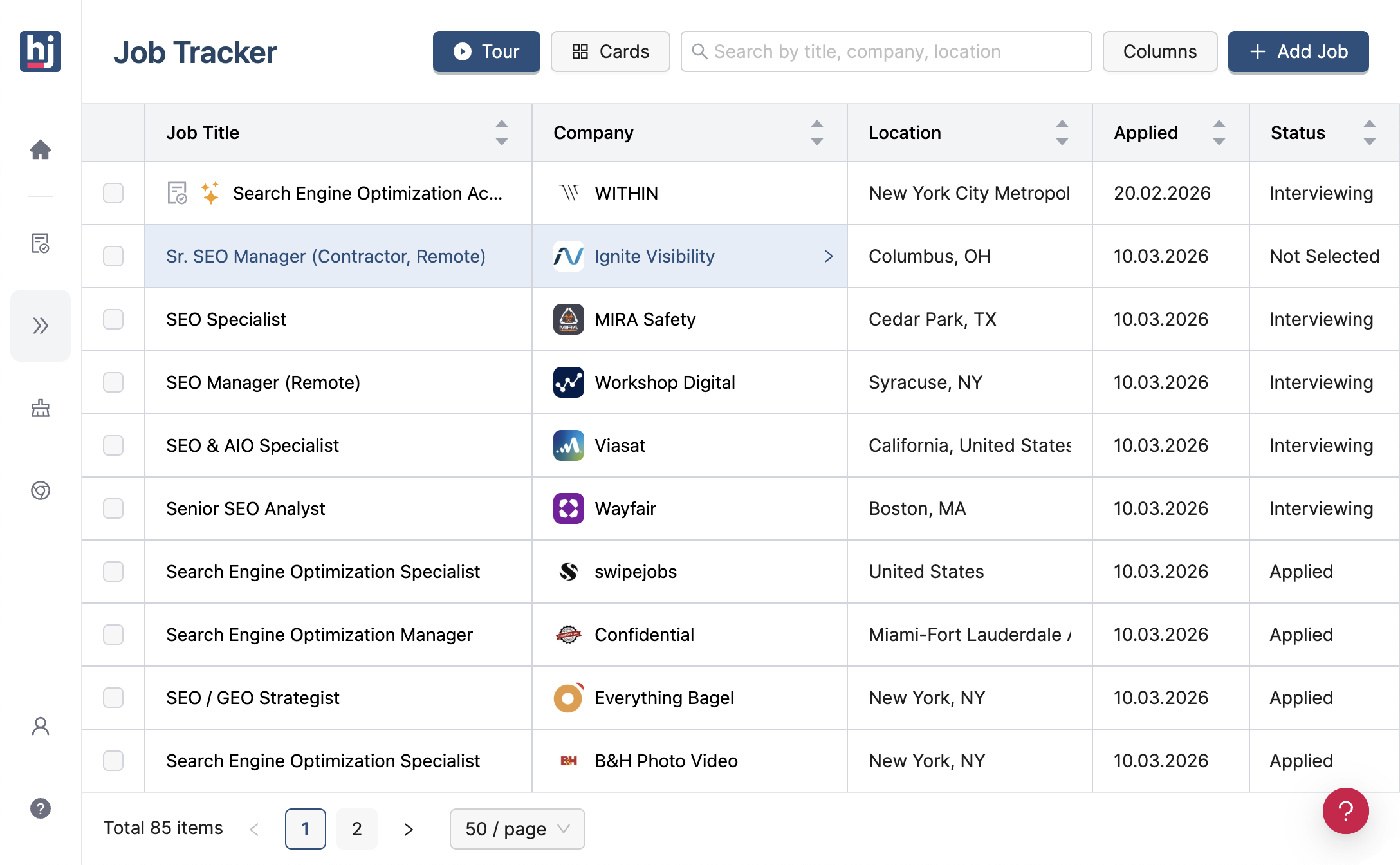
On the follow-up date, the Follow-up cell turns red, and follow-up dates also show in the Next 7 Days calendar on the Dashboard page of the HideJobs web app. Jobs you apply to through LinkedIn's own apply flow are added to the tracker automatically when you use the HideJobs browser extension and are logged in. Indeed jobs can be saved with Add to Tracker in the extension while logged in, and anything else with Add Job. More on setting up the tracker is in the job application tracker guide.
Limits to know
- The tracker does not email you or send notifications. You see red cells and the calendar only when you open it.
- If you add or edit interview rounds on the job, the tracker replaces your Follow-up date with one a day after the earliest dated round you have not followed up on, or clears it if there is no such round.
Who to email when you applied online
When you applied through Easy Apply, Indeed, or a company's application portal, you often have no email address at all. Look in this order:
- The job description. Some postings name a recruiter or give a contact email, and that is the first place to write.
- LinkedIn's Meet the hiring team section. When a job's details page shows a Meet the hiring team section, LinkedIn says members can connect and message the entire team listed there, including the job poster. LinkedIn's help on applications also says you can send an InMail to the job poster to thank them for reviewing your application, and InMail is a Premium feature, according to its InMail credits page. You cannot send a second InMail to the same person until they reply to the first.
- Indeed Messages. Indeed says you can send messages to employers directly from job listings, and some listings include employer contact details for direct messaging (About Indeed Messages).
- Anyone who has already written to you about the role, such as a recruiter who reached out first.
- A LinkedIn connection request with a note to someone in Meet the hiring team. Free members can add a personalized message to five connection requests per month, per LinkedIn's invitation limits page, so save them for the roles you want most.
When you find a name, save it on the job's Contacts tab in the HideJobs tracker. The AI Assistant needs that contact before it can draft the email (steps below).
If none of these exist, a careers or recruiting email on the posting or the company's careers page is the last option. Address it to the hiring team for the role and put the job title in the subject. If there is not even that, put your time into the next application.
What to write: job application follow-up email templates
A good follow-up email is short enough to read on a phone. Include:
- A subject line with the job title, so it can be matched to your application without opening it.
- When and where you applied, plus any job ID from the posting.
- One sentence on why you fit, tied to something in the job description.
- One clear question, usually about the timeline.
Leave out salary, a second copy of your cover letter, and any guilt-trip about not hearing back.
Subject lines that work:
- Following up on my application for [Job Title]
- [Job Title] application: [Your Name]
- Checking in on the [Job Title] role ([Job ID])
Example 1: first follow-up after applying online
Example 2: when someone referred you
Example 3: short message for LinkedIn or Indeed Messages
Swap in your own details, and keep one specific fact from your experience.
How to draft the follow-up email in HideJobs
If the job is in the HideJobs job tracker, the AI Assistant on that job writes the follow-up for you from the job title, the company, the contact, and any details you add. Drafting is free to try, and Premium gives you more AI usage. To draft a follow-up for an application that has had no reply:
- In the Job Tracker, click the job's title to open it.
- In the row of tabs on the job page, click Contacts.
- Click Add Contact.
- Enter the person's First Name and, if you have it, their Email.
- Click Save.
- In the same row of tabs, click AI Assistant.
- Click Emails, next to Screening Call and Behavioral Questions.
- Click Create email.
- Under "Who is this email to?", choose the contact.
- Under "What is this email about?", choose Reminder.
- Under "Reminder focus (optional)", choose Follow up on no response.
- Optionally, add a line under "Extra details for this email (optional)", such as the date you applied or a skill to mention.
- Click Write with AI.
- Edit the subject and body until they sound like you.
- To send it by email, click Open in mail app below the draft.
- To send it in LinkedIn or Indeed Messages instead, click the copy icon in the row of buttons below the draft.
- Paste it into the message box on LinkedIn or Indeed.
- Delete the "Subject:" line at the top of the pasted text.
- Click Save to keep the draft with the job.
Limits to know
- You need at least one contact on the job before Create email works.
- Open in mail app only appears when the contact has an email address. Without one, you get an Add email to contact button instead.
- The Follow-up email type needs an interview round on the job (except for Respond to rejection). Before any interview, use Reminder.
- HideJobs does not send the email for you, and it does not email or notify you when a follow-up is due.
The second follow-up, and when to stop
If a week passes after your first follow-up with no reply, send one more, shorter message. Reply in the same thread so the reader sees your first email underneath. In the HideJobs tracker, set the job's Follow-up date to a week after your first email, so the cell turns red again when the second one is due. To draft it in HideJobs, repeat the drafting steps above, skipping Add Contact because the contact is already saved, and type "second follow-up" under Extra details for this email. Then copy the draft and paste it as a reply in the same thread as your first email.
After that, stop. Close the job out in the HideJobs tracker so it stops looking like an open lead:
- In the Job Tracker table view, click the job's Status cell.
- Choose No Response or Ghosted.
If the same employer keeps reposting the role without ever replying, it may not be a real opening. How to spot ghost jobs covers the warning signs. And if the silence is wearing you down, the guide to job search burnout has ways to keep going.

Anton writes about job search problems from firsthand experience. He builds tools to solve issues like repeated listings, irrelevant results, and inefficient filtering across job platforms.
Related Resources:
- Job Application Tracker: What to Track and How to Set It Up - Keep every application, status, and follow-up date in one list
- What Is a Ghost Job? How to Spot Fake Job Listings (2026) - Tell when a posting with no replies may not be a real opening
- Should You Reapply to a Reposted Job? - What to do when a job you applied to shows up again