Quick Answer
A job application tracker is one list of every job you applied to, with its status and your next step.
- LinkedIn's Job tracker and Indeed's My Jobs are built for jobs on their own site. Indeed lists six months at a time and does not save applications you send on an employer's website.
- Track company, role, job link, date applied, status, next step, and follow-up date. Add the rest only when you need it.
- Decide in advance when an application becomes No Response or Ghosted, so the list reflects what is really open.
- The HideJobs job tracker is free and keeps every application in one place. With the browser extension and a login, it adds jobs you apply to through LinkedIn's own apply flow automatically. See the job tracker page.
What LinkedIn and Indeed already track for you
Before you build a job application tracker, check what the job boards already keep: LinkedIn and Indeed each have an applied list, built for jobs on their own site.
On LinkedIn, its help page on applied jobs says to click Jobs at the top of your homepage, then Job tracker in the left rail, then the Applied tab. In the app, tap Jobs, then Job tracker under the search bar, select Applied from the dropdown, and tap Update. You can open each job again from there. LinkedIn's Job tracker also holds your saved jobs, and you can change a saved job's stage or archive it.
On Indeed, My Jobs has four tabs: Saved, Applied, Interviews, and Archived. Indeed says My Jobs "doesn't track your entire job application history. It lists six months at a time," and when you apply on another website, the application "doesn't save on Indeed," so you have to move the job to Applied yourself. For a full history, Indeed suggests a spreadsheet or a written list.
Where the board lists stop
- You end up with two separate lists, one per board, and a referral or a job you found only on a company's careers page has no obvious home in either.
- Indeed only lists six months at a time.
- Neither help page mentions a place for the recruiter's name or a follow-up date.
The board lists are fine for checking on a single job, but the whole search needs one list of your own. In HideJobs, the free job tracker I build, you add a referral or careers-page job with a form, keep the recruiter in the job's Contacts tab, and record a follow-up date for each job. Details are below.
What to track in a job application tracker
The more columns a tracker has, the more there is to fill in after every application, and the harder it is to keep up. Start with these seven:
- Company
- Role, copied from the posting so you can search for it later.
- Job link. Postings get taken down, so also paste the description into a notes field or document when you apply, since you will want it before an interview.
- Date applied.
- Status. One value from a fixed list, covered in the next section.
- Next step. A short action, like "email recruiter" or "prep case study."
- Follow-up date. The day you will act on the next step.
Add a column only when you will use it to decide something:
- Source (LinkedIn, Indeed, referral, company site) if you want to see which channel gets replies.
- Resume version if you send different resumes for different roles.
- Contact (recruiter or hiring manager name) once someone replies.
- Salary range and work format if they decide which offers you would take.
- Deadline for jobs you saved but have not applied to yet.
Search the tracker before you apply, so you do not send a second application to the same role. If jobs you already applied to keep showing up in LinkedIn search results, see how to hide applied jobs on LinkedIn.
Status rules so the tracker stays honest
A tracker is only useful if the status column is accurate. When every row says Applied, some of those jobs are dead and you cannot tell which.
Use a short fixed list and write down what each status means for you. For example:
- Bookmarked: you plan to apply, ideally with a deadline.
- Applied: sent, no reply yet.
- Interviewing: any real conversation with the company has happened or is scheduled.
- No Response: you applied, followed up once, and heard nothing.
- Ghosted: you had at least one interview or call, then they went silent.
- Not Selected: they told you no.
- Withdrew: you pulled out.
Pick your own cut-off for No Response, for example two weeks after your follow-up, and apply it every time so the Applied column only holds applications that can still move. Splitting silence before and after an interview also tells you different things: lots of No Response may point to your resume or targeting, while Ghosted after interviews may point to how the interviews are going.
Job tracking spreadsheet or a job tracking app
A spreadsheet is flexible and enough for a short search. To set one up in Google Sheets:
- Type these headers into row 1: Company, Role, Job link, Date applied, Status, Next step, Follow-up date, Days waiting. The last one is calculated, so you never type in it.
- Select the Status cells below the header (E2 down) and click Insert, then Dropdown, and enter your statuses as the options, so every row uses the same words.
- In H2 (Days waiting), enter
=IF(OR(D2="",E2<>"Applied"),"",TODAY()-D2)and copy it down. It stays blank until you fill in Date applied, and only counts rows still marked Applied. TODAY returns the current date, so the number of days since you applied goes up on its own. - Sort by Follow-up date each morning.
The weak point is that every row is typed by hand, so on a busy day the logging is the first thing you skip, and a tracker that is a week behind is not much use.
If you apply on several boards or start losing rows, HideJobs can add jobs for you: with the browser extension and a login, jobs you apply to through LinkedIn's own apply flow are added automatically and Add to Tracker saves Indeed jobs. Referrals and careers pages still go in by hand. How it works and its limits.
How to track applications with HideJobs
You use the HideJobs tracker in the web app, and the HideJobs browser extension feeds jobs into it from the job boards:
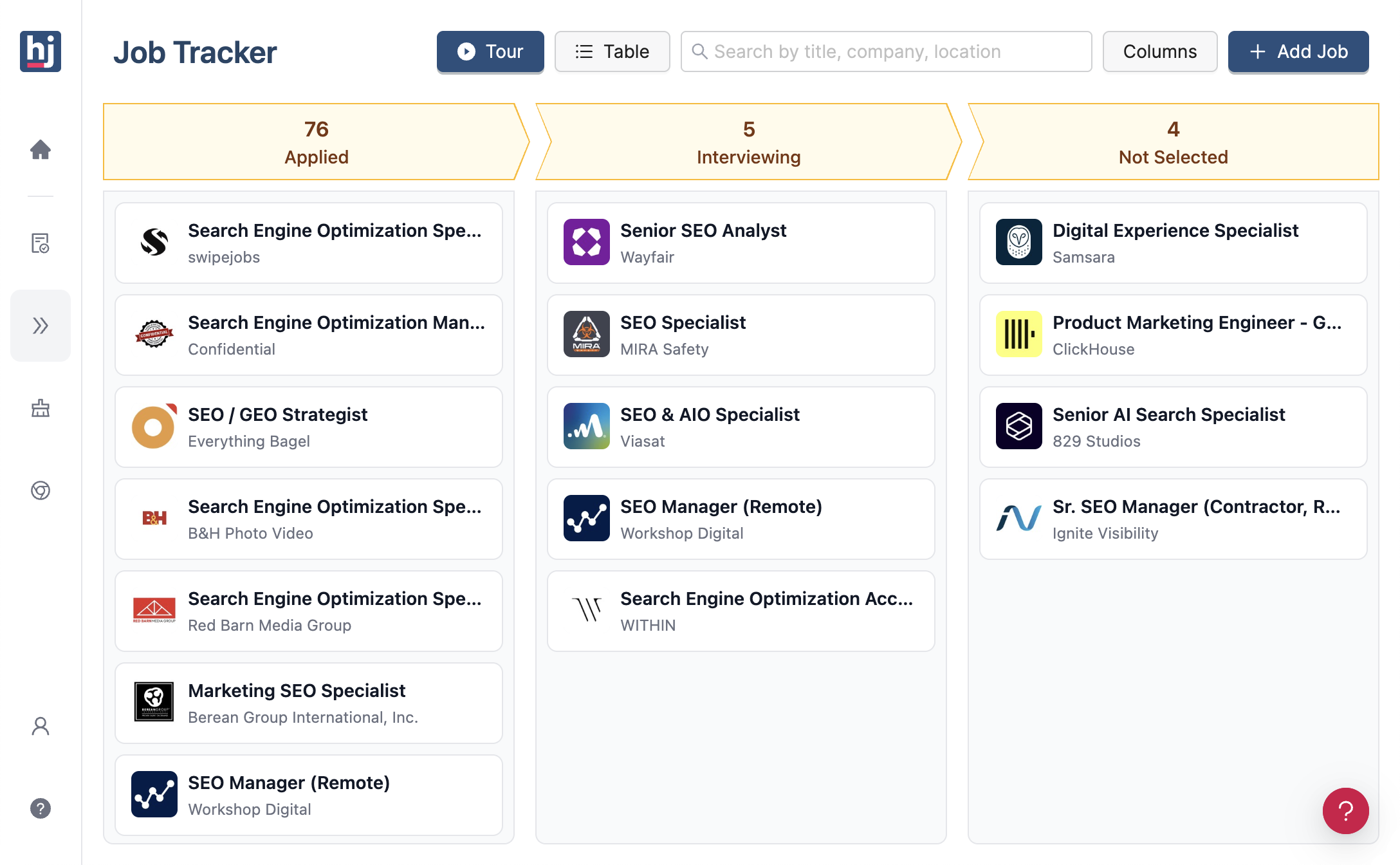
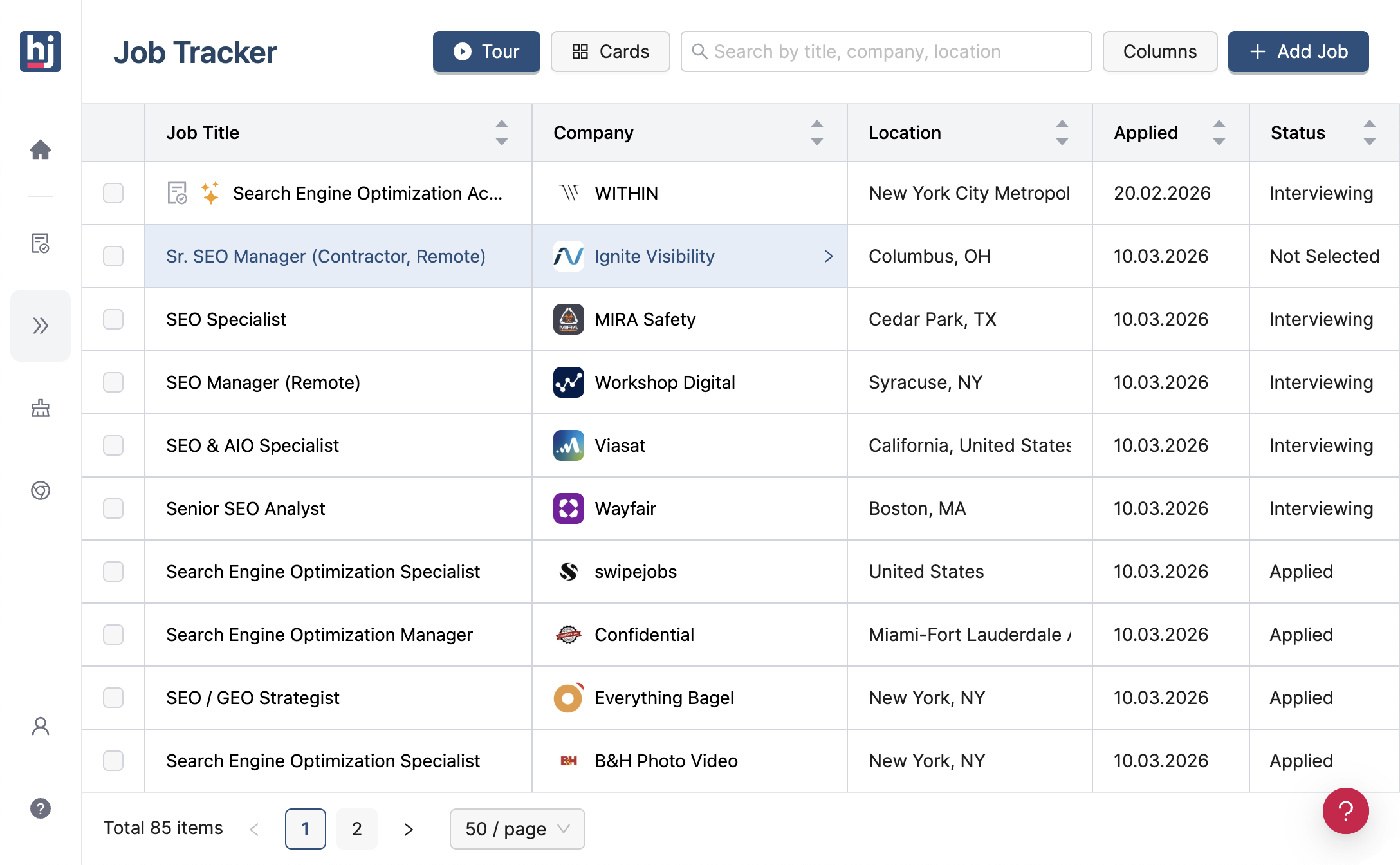
- LinkedIn applications are added for you. With the extension installed and logged in, a job you apply to through LinkedIn's own apply flow is added as Applied after LinkedIn's post-apply page. It does not capture applications you finish on an outside site.
- Add to Tracker on LinkedIn and Indeed. Add to Tracker in the extension saves the open job from LinkedIn or Indeed (login needed). Anything else, such as a referral or a company careers page, you add with a form in the web app or the extension.
- Every status from the section above, plus Applying, Negotiating, Accepted, and Archived.
- Board or Table. The board has a column per status that you drag jobs between. The table has columns for salary range, location, work format, posted, added, and applied dates, follow-up date, deadline, a 1 to 5 star Interest rating, and Next Step.
- Contacts and interviews on the job. Each job has Description, Resume, Notes, Contacts, Interview, and AI Assistant tabs. In Interview you log each round with its date and time, pick a preset name like Screening Call or Final Interview or write your own, mark it completed, and link the interviewers from Contacts.
Follow-ups are visual only: when an interview round's time has passed, the job shows a "Follow up!" label and a red dot, and there are no email or push reminders. The extension runs in a desktop browser, and your tracked jobs sync across devices once you log in. More details are on the job tracker page.
What to check in your tracker once a week
Ten minutes on the same day each week keeps the list current and shows you what to change:
- Check the follow-up date column and send any follow-ups that are overdue. In HideJobs, jobs with a past interview round also show a "Follow up!" label.
- Move any Applied row that is past your cut-off to No Response or Ghosted.
- Check how many applications you sent. In HideJobs, the tracker home page shows an Application Activity chart (daily, weekly, or monthly) and an Application Goal per day, week, or month. In a spreadsheet, count the rows with this week's date. If you are not sure what target to set, see how many jobs you should apply for.
- After a month, look at what got replies: compare the jobs that reached Interviewing with the ones that did not, by source, role, or resume version.
If the job search itself is wearing you down, job search burnout covers how to structure the week so the tracking does not become another chore.

Anton writes about job search problems from firsthand experience. He builds tools to solve issues like repeated listings, irrelevant results, and inefficient filtering across job platforms.
Related Resources:
- How Many Jobs Should I Apply For? - Set a weekly application target that fits your search
- Job Search Burnout: How to Stay Organized and Keep Going - Structure your search so it does not wear you down
- How to Hide Applied Jobs on LinkedIn (2026 Guide) - Stop seeing jobs you have already applied to in LinkedIn search results