Quick Answer
The advanced search page is gone, but most of what it did still works if you type it into the regular search box.
- Exclude words: nurse -intern
- Exact phrase: "math skills"
- Any of these words: (teacher OR instructor)
- Title only: title:"product manager"
- One company only: company:"Charles Schwab"
- Job type, pay, date posted, distance: use the filters above your results
Two old options have no documented replacement: excluding staffing agencies and showing only jobs from employer websites. Indeed also has no way to exclude a company. For companies and agencies, use a filter like HideJobs.
What happened to Indeed advanced search
If you have a bookmark for Indeed advanced search, it now leads to a "Not found" page. I tested indeed.com/advanced_search on October 10, 2026 and got Indeed's own 404 page, not a login wall or a temporary error. Archived copies show the page still worked in December 2024 and was already returning 404 by May 2026.
I found no announcement from Indeed, and its own career guide on getting better search results, updated in June 2026, still links to the dead page.
The page was mostly a form that wrote search syntax for you, and Indeed still understands that syntax if you type it into the regular "What" box yourself.
How to rebuild every advanced search field
These are the search fields the old form had, based on an archived copy of the page from December 2024, with what to use in their place today.
| Old advanced search field | What to use now |
|---|---|
| With all of these words | Type the words, or join them with AND: sales AND healthcare |
| With the exact phrase | Quotation marks: "project manager" |
| With at least one of these words | Parentheses and OR: (teacher OR instructor) |
| With none of these words | A dash before each word: nurse -intern -temporary |
| With these words in the title | title:"data analyst" |
| From this company | company:"Charles Schwab" |
| Show jobs of type | Job type filter |
| Salary estimate | Pay filter |
| Location and distance | "Where" box plus the distance filter |
| Age (jobs published) | Date posted filter |
| Show jobs from (job boards or employer sites only) | None documented |
| Exclude staffing agencies | None documented |
Indeed search operators that still work
Indeed documents its operators in the job seeker help center. The table above shows what each operator does. A few rules trip people up:
- No space after the dash. nurse -intern works, nurse - intern does not.
- A dashed word cannot be searched alone. You need at least one normal keyword in the query.
- Use the dash rather than NOT. Indeed's career guide lists NOT, but the help center only documents the dash.
- Without quotes, words match anywhere. project manager also matches listings that contain both words separately.
Some combinations worth saving:
Search strings you can copy:
- title:"data analyst" -senior -principal to cut most senior analyst roles
- (recruiter OR "talent acquisition") plus the Full-time job type filter, for permanent recruiting roles under either title
- "registered nurse" -travel -intern to skip most travel contracts and student roles
- software engineer no security clearance, which Indeed's help center suggests for excluding jobs that mention a clearance
The dash checks the whole listing, not just the title, so an exclusion like -senior can also drop jobs that only mention a senior team. If your results look thin, remove exclusions one at a time.
Once a search works, create a job alert from the results page. New matches then come to you, and you stop rebuilding the query every day.
The filters that replaced the rest of the form
The dropdowns from the old form moved into filters. They appear above the results only after you run a search, which is why many people never notice them. According to Indeed's search guide, the filters include:
- Pay
- Date posted
- Remote work preferences
- Location and distance
- Job type
- Experience level and education level
- Relevant skills and "Encouraged to apply" status
- Shift and schedule, where relevant
Indeed says these filters vary by location and by search, so do not worry if one is missing. Date posted is the one worth using every time, because a short window keeps old listings that may already be filled out of your results.
Indeed also has a saved version of the dash operator. In your job search preferences, you can mark job titles, skills, certifications, and languages as Not interested. That help page says Indeed uses them to filter out matching jobs, but another Indeed help page states, "Your preferences won't change in the job search results," so Indeed is not clear on how reliably they apply to search. Company names are not on that list either way.
What Indeed search still cannot do
Indeed search now has three gaps. The first is staffing agencies. The old form had an "Exclude staffing agencies" checkbox, and nothing replaced it. If your field is heavy on agency postings, you will see the same role listed by several recruiters with no way to collapse them. Part of the reason may be that Indeed already sidelines agencies: in late 2018 it announced it would keep jobs from recruitment firms out of its organic US and Canada results starting in 2019, so many agency postings now reach you as sponsored listings. Hiding sponsored jobs and blocking agencies by name with HideJobs, covered below, clears most of them out.
The second is the employer-only option. "Show jobs from: employer web sites only" let you skip listings scraped from other job boards, and it went away with the page.
The third is that you cannot exclude a company. The old form never had this field, and Indeed still documents no way to do it, in search or in Not interested preferences. The company: operator narrows results to one employer but cannot remove one. If an employer you have already ruled out keeps posting, it will keep showing up. Putting a dash before the company name is a poor substitute, because it also drops any listing that mentions that company in its description. The reliable fix is to hide the company on the results page itself, which is what HideJobs company blocking does.
How to filter what Indeed will not
HideJobs, the browser extension I build, filters the Indeed results page itself, so it works on top of whatever search and filters you use. Here is what it does on Indeed, and where it falls short.
- Block companies (Premium). Click the eye icon on any job card to hide that employer, or manage a list. Matching is by exact company name, and the same list applies on LinkedIn and other supported job boards.
- Hide staffing agencies (Premium). Add words like "staffing" or "recruiting" as blocked keywords to catch agencies that use them in their name or card text, and block the agencies that do not by company name. The keyword filter also hides any card that mentions those words, so check your results the first time.
- Hide sponsored jobs (Free, no account needed). One toggle removes listings Indeed marks as sponsored. It is also the quickest way to thin out staffing agency posts, though it removes sponsored posts from direct employers too.
- Flag listings for review (Premium, beta). On Indeed search results pages (indeed.com/jobs), the Keyword Scanner opens each listing and marks the ones whose full description contains words like "commission only," so you can review them before hiding anything. The dash operator would remove them without telling you.
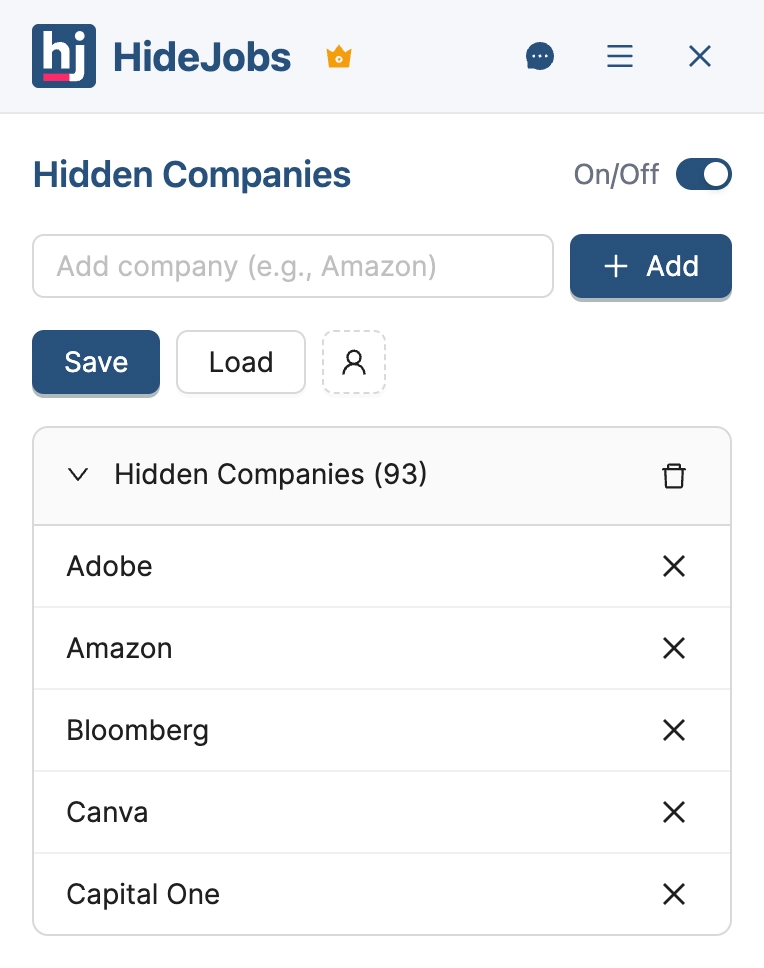
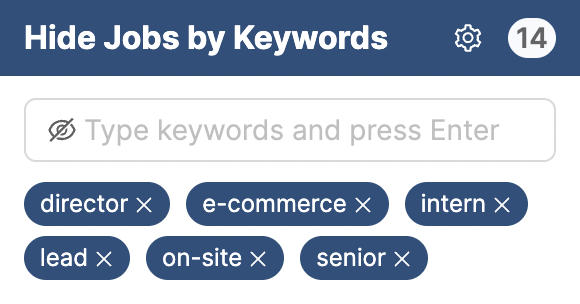
HideJobs does not restore the employer-websites-only option. The operators handle most of what advanced search did, and the extension adds company blocking and a workaround for staffing agencies, neither of which Indeed search offers. For the full keyword strategy, see our guide to filtering jobs by keywords, and for employers you want gone everywhere, how to exclude companies from your job search.

Anton writes about job search problems from firsthand experience. He builds tools to solve issues like repeated listings, irrelevant results, and inefficient filtering across job platforms.
Related Resources:
- How to Exclude Companies from Job Search - Block unwanted employers across LinkedIn, Indeed, and other job boards
- How to Filter Jobs by Keywords - Which keywords to block and how to combine keyword and company filters
- Ghost Jobs: What They Are and How to Spot Them - Avoid wasting applications on postings that will never hire